
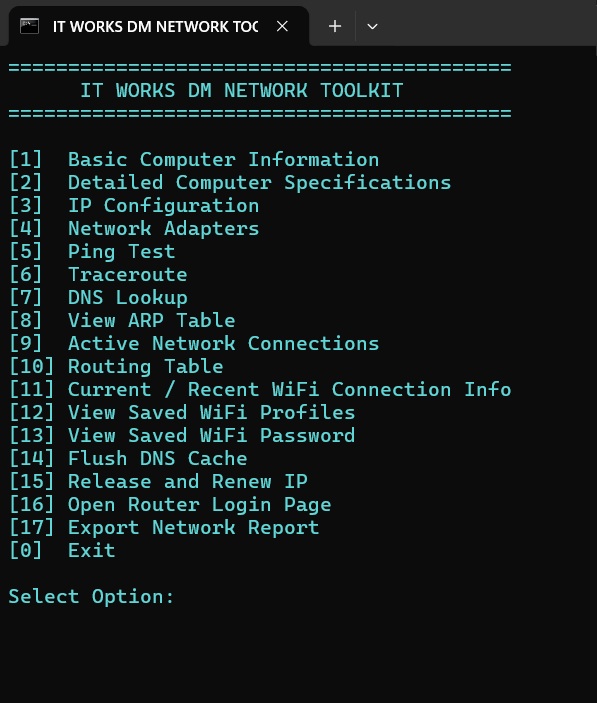
IT Works DM Network Administration Toolkit v1.3
Free Windows Network Diagnostic Utility for Field Technicians
Simplify routine IT support tasks with the IT Works DM Network Administration Toolkit, a menu-driven Windows CMD utility designed for Field Technicians, computer technicians, freelance IT support professionals, and aspiring network administrators.
Instead of manually entering multiple Windows networking commands, access commonly used diagnostic functions through one convenient menu.
Whether you are checking a client’s computer, investigating a network connection issue, reviewing hardware specifications, or preparing a technical service report, this toolkit provides a practical starting point for your troubleshooting workflow.
TOOLKIT FEATURES
1. Computer Information and Hardware Diagnostics
Option 1 — Basic Computer Information
View the computer name and a summary of key Windows and system information.
Option 2 — Detailed Computer Specifications
Review detailed system information available through Windows, including:
- Computer manufacturer, model, and system type
- Installed RAM and physical memory module details
- Windows edition, version, build, architecture, installation date, and last boot information
- Processor model, manufacturer, core count, logical processor count, and reported maximum speed
- Motherboard manufacturer and model
- BIOS manufacturer, version, and release date
- Graphics adapter name, driver version, and available video information
- Physical disk models, interfaces, and reported capacities
- Local drive letters, volume names, file systems, total capacity, and available free space
This information can help technicians understand a computer’s reported hardware configuration when assessing compatibility, investigating performance concerns, or documenting a service case.
Some details may be unavailable depending on the hardware, drivers, Windows version, or permissions.
2. Network Diagnostics and Connectivity Testing
Use the following functions to investigate common network issues:
Option 3 — IP Configuration
View detailed IP configuration information using Windows networking commands.
Option 4 — Network Adapters
Inspect network adapter names, descriptions, status, link speed, and MAC addresses where available.
Option 5 — Ping Test
Test connectivity to a specified hostname or IP address.
Option 6 — Traceroute
Inspect the network path toward a specified destination.
Option 7 — DNS Lookup
Look up hostname and DNS information using the Windows nslookup command.
Option 8 — View ARP Table
Review available IP-to-MAC address mappings.
Option 9 — Active Network Connections
Inspect network connection and listening-port information, including associated process IDs.
Option 10 — Routing Table
View the computer’s routing information using Windows commands.
These tools can help technicians gather evidence when investigating connectivity, name resolution, routing, or adapter-related issues. Results depend on network conditions, firewall rules, and system configuration.
3. Wi-Fi Connection Information
Option 11 — Current / Recent Wi-Fi Connection Info
View the current Wi-Fi interface information and request a Windows WLAN report that may contain recent wireless connection sessions and events.
The report can help technicians investigate connection history, disconnections, and wireless troubleshooting issues when relevant information is available.
Option 12 — View Saved Wi-Fi Profiles
List the Wi-Fi profile names saved on the Windows computer.
Option 13 — View Saved Wi-Fi Password
Inspect the saved security details for a selected Wi-Fi profile when Windows makes the information available and the user has the necessary authorization and permissions.
How to identify the password: In the command output, look under the Security settings for the line labelled Key Content. The value displayed beside Key Content is the saved Wi-Fi password, if Windows exposes it for that profile.
If the Key Content field is absent or no value is displayed, the password may not be available through this command.
Credential safety: Only inspect saved Wi-Fi credentials on a computer and network you own or are explicitly authorized to service. Do not copy, store, photograph, or disclose a client’s password without permission.
4. Network Maintenance Utilities
Option 14 — Flush DNS Cache
Run the Windows DNS cache-flushing command to help troubleshoot certain name-resolution problems.
Option 15 — Release and Renew IP
Release and renew the computer’s IP configuration when appropriate for troubleshooting.
This action may temporarily interrupt connectivity. Save your work and obtain permission before using it on a client’s computer.
Option 16 — Open Router Login Page
Attempt to detect the default IPv4 gateway and open its address in the default browser.
Router accessibility depends on the network configuration, gateway availability, and device settings. Router credentials are not supplied by this toolkit.
5. Export Network Report
Option 17 — Export Network Report
Generate a text report intended to help technicians document computer and network diagnostic information.
The report includes:
- Computer identification and basic system information
- Detailed computer specifications
- IP configuration
- Network adapter information
- ARP entries
- Active network connections
- Routing information
- Current Wi-Fi interface information
- Saved Wi-Fi profile names
The report is saved to the Desktop, or the Documents folder if the Desktop path is unavailable, and is opened in Notepad when successfully created.
Saved Wi-Fi passwords are not intentionally included in the exported report.
Always review the report before sharing it because it may contain sensitive device and network information.
WHO IS THIS TOOLKIT FOR?
This free utility is intended for:
- IT Works DM Field Technicians
- Freelance computer technicians
- IT support and networking beginners
- Computer hardware troubleshooting learners
- Technicians who need a convenient starting point for collecting diagnostic information
- IT learners developing familiarity with Windows networking commands
PRODUCT DETAILS
Product name: IT Works DM Network Administration Toolkit v1.3
Publisher: IT Works DM University
Product type: Digital utility
Operating system: Windows 10 and Windows 11
File format: ZIP archive
Included files: Windows CMD batch utility and README instructions
Installation: No traditional installer required
Price: FREE — ₱0
HOW TO USE
- Download the ZIP file from IT Works DM University.
- Extract the ZIP archive into a folder on your Windows computer.
- Open
ITWDM_Network_Administration_Toolkit.bat. - Enter the number of the function you want to use.
- Follow the prompts displayed by the toolkit.
- Select Option 0 to exit.
Read the included README file before using the utility, especially the instructions for Wi-Fi credentials, network changes, and report handling.
IMPORTANT SECURITY AND USAGE NOTICE
Use this toolkit only on computers and networks you own or are explicitly authorized to service.
Some commands may require appropriate Windows permissions. Results can vary according to operating system version, hardware, drivers, network availability, security policies, and system configuration.
The Wi-Fi password function can reveal stored credentials. Obtain the network owner’s permission before inspecting them. Network reports and hardware inventories may also contain sensitive information and should be handled responsibly.
This utility is provided as an IT troubleshooting aid and educational resource. It is not a replacement for comprehensive network monitoring, endpoint security software, or professional diagnostic solutions.
IT Works DM does not guarantee that every feature will work identically on every Windows computer. Test the utility in an appropriate environment before using it during a client service assignment.
CONTINUE YOUR PROFESSIONAL DEVELOPMENT
IT Works DM University provides learning resources and digital tools intended to support the continued development of Field Technicians and IT support professionals.
Download this free toolkit, strengthen your familiarity with Windows networking tools, and explore additional resources, courses, and digital utilities available through IT Works DM University.
Download the IT Works DM Network Administration Toolkit v1.3 for FREE.




Reviews
There are no reviews yet.